
Every thesis season, the same scene repeats in defense rooms across the Arab world: the examiner slides the results chapter aside, points at a printed output table, and asks one question — why did you choose this test? At that moment, the student who clicked through menus blindly and the student who understands the analysis are separated in under a minute. IBM SPSS Statistics has been the most popular statistical package in scholarly research for over 20 years, according to an analysis of Google Scholar data, and it earned the 2026 TrustRadius Buyer's Choice Award in its category — which means committees know exactly what its tables should look like. This guide takes you from a blank Variable View to six fully interpreted output tables, using one complete teaching example you can rebuild step by step. Last updated: October 22, 2026.
Why committees keep asking about the output tables
Software makes running a test easy; choosing and defending the right test is the actual skill. An examiner who asks about Levene's test, or about why Tukey followed your ANOVA, is testing whether the numbers on the page are yours or borrowed. The defense-proof sequence is always the same: code variables cleanly, screen the data, match each hypothesis to a test by variable type and distribution, then interpret each output in plain language. Every menu path in this guide is taken verbatim from the official IBM SPSS documentation, so what you read here is what you will find in the software.
The running example: one questionnaire, 200 students, four subscales
Throughout this guide we use one hypothetical teaching example — not a real study. A researcher surveys 200 university students about their satisfaction with e-learning. The questionnaire has 20 Likert items scored 1 to 5, organized into four subscales of five items each: content quality (Q1 to Q5), course interaction (Q6 to Q10), platform ease (Q11 to Q15), and overall learning outcome (Q16 to Q20). Three demographic variables complete the form: gender, field of study, and grade average. Every hypothesis below — gender differences, differences across majors, the relationship between platform ease and total satisfaction — is answered from this single data set.
Step 1: code the questionnaire in Variable View
Open a new data file and click the Variable View tab at the bottom. Each row is one variable, and each column is a property IBM defines precisely. The full coding plan for our example:
| Name | Type | Label | Values | Missing | Measure |
|---|---|---|---|---|---|
| ID | Numeric | Respondent ID number | None | None | Nominal |
| Gender | Numeric | Gender | 1 = male, 2 = female | None | Nominal |
| Major | Numeric | Field of study | 1 = computer science, 2 = other scientific fields, 3 = literary fields | None | Nominal |
| Grade | Numeric | Grade average | 1 = weak, 2 = acceptable, 3 = good, 4 = very good, 5 = excellent | None | Ordinal |
| Q1 to Q20 | Numeric | Full wording of each item | 1 = strongly disagree, 2 = disagree, 3 = neutral, 4 = agree, 5 = strongly agree | 99 = no answer | Ordinal |
| Tot_Score | Numeric | Total satisfaction score | None | None | Scale |
Three IBM rules keep this plan valid. First, variable names can be up to 64 bytes, cannot contain spaces, and cannot use reserved words — ALL, AND, BY, EQ, GE, GT, LE, LT, NE, NOT, OR, TO, WITH — which is why our total is named Tot_Score rather than Total Score. Second, you enter value labels by clicking the Values cell, typing each value and its label, and clicking Add for every pair. Third, the Measure column carries meaning: Nominal for unordered categories like gender, Ordinal for ordered categories — IBM's own documentation illustrates this level with satisfaction ratings running from highly dissatisfied to highly satisfied, exactly like Likert items — and Scale for interval or ratio data such as age in years or a computed total score.
Step 2: clean the data before any test
Dirty data produces defendable-looking tables that collapse under one follow-up question. Run these five screening steps, all from standard IBM-documented procedures, before touching a hypothesis test.
Declare missing values. Our plan codes no-answer as 99 and declares it in the Missing column, so SPSS excludes it from most calculations automatically — the documented behavior of declared missing values. Run Analyze > Descriptive Statistics > Frequencies on the 20 items to see each item's missing percentage and catch an item students skipped en masse.
Hunt impossible values. A Likert item cannot legitimately hold 0, 6, or 55 — those are typing errors. Use Data > Select Cases to filter the analysis to cases with valid 1-to-5 values on the items, and document what you excluded and why.
Source: Wikimedia Commons

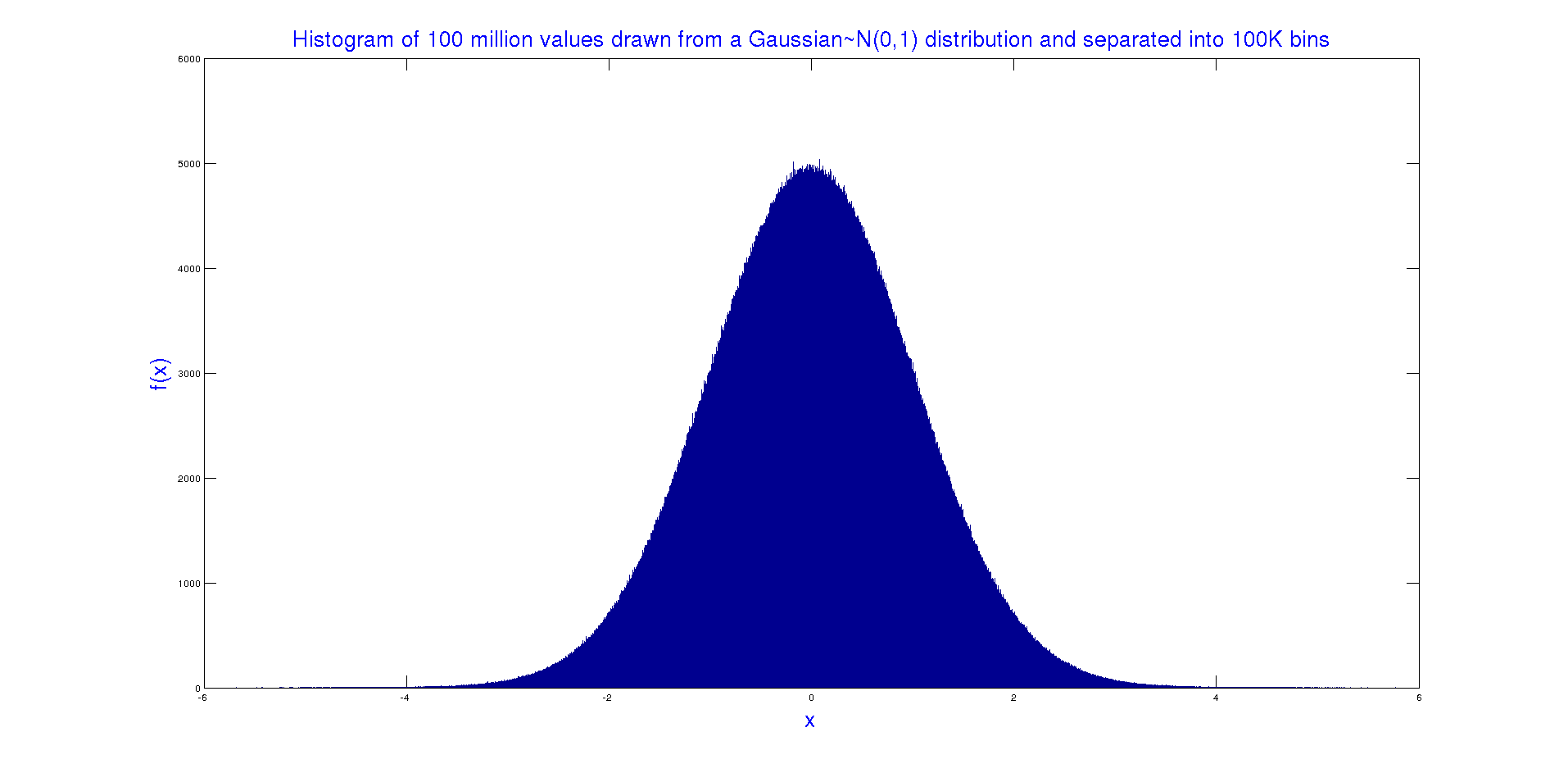
Check normality. Parametric tests — t tests, ANOVA, Pearson correlation — assume approximately normal distributions. Use Analyze > Descriptive Statistics > Explore and request Normality plots with tests: the output gives Kolmogorov-Smirnov (with the Lilliefors correction) and Shapiro-Wilk, where a significance value above 0.05 supports normality; IBM documents Shapiro-Wilk for samples from 3 to 5,000, which covers our 200 students. The same Explore output reports skewness and kurtosis with their standard errors — values within about plus or minus twice the standard error are the conventional comfort zone. When distributions stray, switch to the non-parametric side.
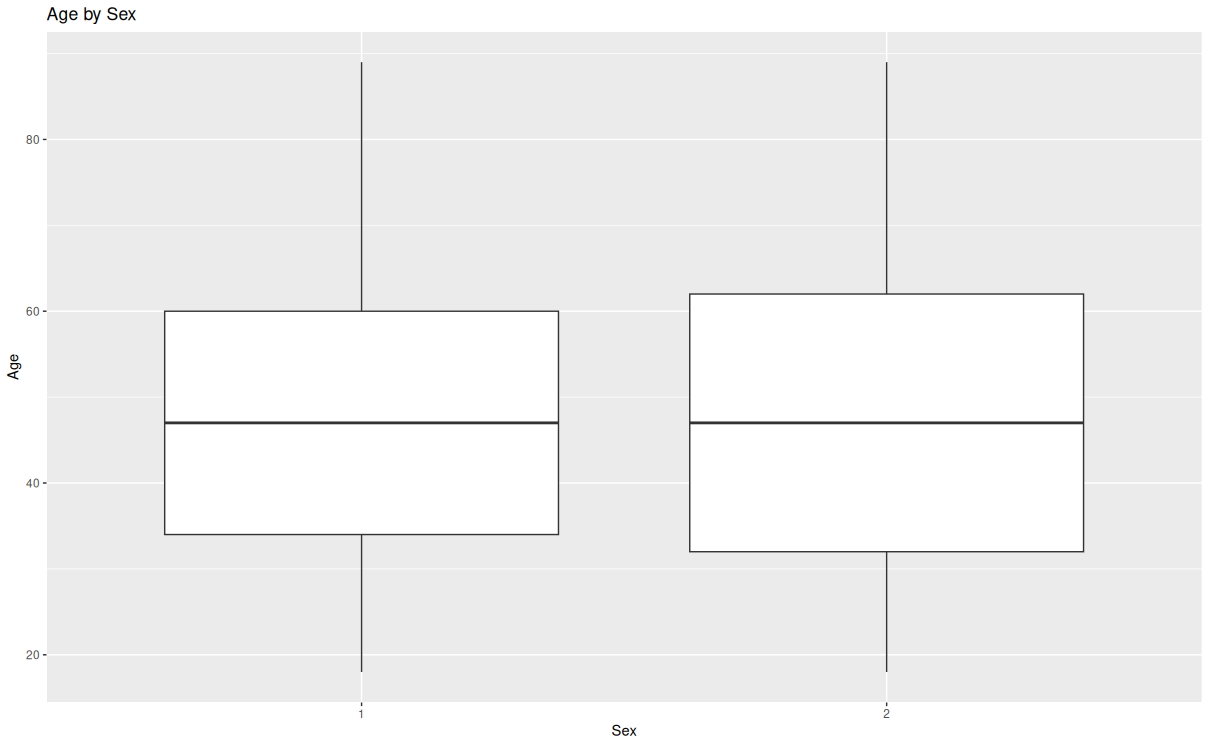
Detect outliers. The same Explore procedure lists the five largest and five smallest values for each variable and draws boxplots, the fastest visual flag for extreme cases. For each outlier, decide deliberately: correct a provable entry error, or exclude with documentation — never delete silently.
Reverse negative items. If your questionnaire includes negatively worded items — "the platform often crashes" — reverse-score them before computing any total, using Transform > Compute Variable, so that a higher number always means more satisfaction on every item.
Step 3: choose the right statistical test
Test choice is a function of your hypothesis and your variables' types and count — nothing else. The table maps each standard research question to its test and the exact menu path, verbatim from the IBM SPSS documentation.
| Research question | Test | SPSS menu path |
|---|---|---|
| Difference between two independent groups (males vs females) | Independent-Samples T Test | Analyze > Compare Means > Independent-Samples T Test |
| Difference among three or more groups (majors) | One-Way ANOVA | Analyze > Compare Means > One-Way ANOVA |
| Before/after difference in the same group | Paired-Samples T Test | Analyze > Compare Means > Paired-Samples T Test |
| Relationship between two scale scores | Pearson Correlation | Analyze > Correlate > Bivariate (Pearson) |
| Relationship with ranked or non-normal data | Spearman Correlation | Analyze > Correlate > Bivariate (Spearman) — IBM notes it for data that are not normally distributed or have ordered categories |
| Association between two categorical variables (gender by major) | Chi-Square via Crosstabs | Analyze > Descriptive Statistics > Crosstabs > Statistics > Chi-square |
| Predicting an outcome from one or more predictors | Linear Regression | Analyze > Regression > Linear |
| Internal consistency of a scale | Cronbach's Alpha | Analyze > Scale > Reliability Analysis (Alpha model) |
| Distribution check and outlier screen | Explore | Analyze > Descriptive Statistics > Explore (Plots: Normality plots with tests) |
| Basic description (means, standard deviations) | Descriptives / Frequencies | Analyze > Descriptive Statistics > Descriptives or Frequencies |
Because the parametric-versus-non-parametric fork confuses more students than any other choice, here is the side-by-side:
| Decision factor | Parametric route | Non-parametric route |
|---|---|---|
| Data level | Scale (interval/ratio), or Likert totals treated as scale | Ordinal single items, ranked data |
| Distribution assumption | Approximately normal, checked via Explore | No normality requirement |
| Two independent groups | Independent-Samples T Test | Mann-Whitney test via the Nonparametric Tests menus |
| Two scale variables | Pearson Correlation | Spearman Correlation via Bivariate |
| What you report | Means, SDs, t or F, significance | Medians, ranks, test statistic, significance |
Single Likert items are ordinal; five-item subscale means and total scores behave as scale data, which is why the standard practice in student research — and the approach in our teaching example — runs parametric tests on subscale totals after checking normality, with Spearman as the fallback.
Step 4: run the six core analyses and read the output
All numbers below are teaching-example data for our 200-student survey — illustrative, internally consistent, and rebuilt from the same data set. If choosing tests and interpreting output is where you would like a professional pair of eyes before the defense, Truescho's consultants run SPSS questionnaire analysis from EUR 149 — one questionnaire, up to 300 responses, 30 variables and 5 agreed tests, delivered in 5 days — or EUR 279 for up to 600 responses, 10 tests and an explanation session in 7 days, with the SPSS file plus a Word results document: https://truescho.com/en/apply-for-me/spss-statistical-analysis
Table 1: Reliability — Cronbach's alpha
| Statistic | Value |
|---|---|
| Cronbach's alpha (20 items) | 0.87 |
| N of items | 20 |
The Reliability Analysis output also reports item-total statistics, including the alpha-if-item-deleted column IBM documents: if deleting one item raises alpha noticeably, that item is hurting your scale.
Ready-to-paste sentence: "Cronbach's alpha for the 20-item e-learning satisfaction scale was 0.87, indicating high internal consistency that makes the scale suitable for research purposes."
Table 2: Descriptive statistics
| Variable | N | Mean | SD |
|---|---|---|---|
| Total satisfaction (Q1–Q20 score) | 200 | 3.68 | 0.71 |
On a 1-to-5 scale, a mean of 3.68 with a standard deviation of 0.71 sits clearly above the neutral midpoint.
Ready-to-paste sentence: "The overall mean of e-learning satisfaction was 3.68 (SD = 0.71), indicating a general tendency toward agreement among the students."
Table 3: Independent-samples t test (gender), with Levene's test
| Levene F | Levene Sig. | t | df | Sig. (two-tailed) |
|---|---|---|---|---|
| 0.74 | 0.391 | 1.24 | 198 | 0.217 |
IBM's output presents Levene's test for equality of variances first, then two rows of the t test — one assuming equal variances, one not. Levene's significance above 0.05 means variances are comparable, so you read the first row.
Ready-to-paste sentence: "There were no statistically significant differences between male and female students in e-learning satisfaction (t = 1.24, df = 198, p = 0.217 > 0.05)."
Table 4: One-way ANOVA across majors, with Tukey post hoc
| Source | F | df | Sig. |
|---|---|---|---|
| Between groups (major) | 5.62 | 2 | 0.004 |
A significant F says at least one group differs, not which one — that is the post hoc's job. IBM offers several options including Bonferroni, Tukey HSD, Scheffé, and Games-Howell; in this teaching example the Tukey comparisons locate the difference in favor of the computer science group.
Ready-to-paste sentence: "Statistically significant differences in e-learning satisfaction were found across majors (F = 5.62, p = 0.004 < 0.05), and Tukey post-hoc comparisons showed the difference favored the computer science students."
Table 5: Pearson correlation matrix (subscale vs total)
| Pair | r | Sig. |
|---|---|---|
| Platform ease score × total satisfaction | 0.68 | < 0.01 |
IBM's correlation output flags one star at the 0.05 level and two stars at the 0.01 level; two stars here mean the relationship would surprise no one by chance.
Ready-to-paste sentence: "A strong, statistically significant positive relationship was found between platform ease and total satisfaction (r = 0.68, p < 0.01)."
Table 6: Linear regression summary (predicting total satisfaction from platform ease)
| R | R Square | Adjusted R Square | Beta | Sig. |
|---|---|---|---|---|
| 0.68 | 0.462 | 0.460 | 0.68 | < 0.001 |
Because this simple regression has one predictor, R Square is the squared correlation — 0.68 squared gives 0.462 — and the standardized Beta equals the correlation itself, which is why these numbers cohere.
Ready-to-paste sentence: "Platform ease significantly predicted total satisfaction (R² = 0.462, Beta = 0.68, p < 0.001), explaining about 46 percent of its variance."
Ahmad from Ramallah explaining his output tables to the committee
Consider an illustrative example built on the same teaching data. Ahmad, a graduate student at a university in Ramallah, defended his thesis on e-learning satisfaction with 200 valid responses, a Cronbach's alpha of 0.87, and the six tables above printed in his appendix. Mid-presentation, the external examiner stopped him at the ANOVA page: the F value is significant — so where exactly is the difference, and why Tukey? Ahmad answered in four minutes: F = 5.62 with p = 0.004 only proves some majors differ; Tukey compares every pair while controlling the familywise error rate; the comparisons favored computer science students. The examiner followed up on Levene's test in the t table, and Ahmad explained that its significance above 0.05 justified reading the equal-variances row. He passed. Nothing in his answers required special talent — only that he had run, and understood, each table himself.
From SPSS output to results chapter
A results chapter is not a dump of output. Cite every source you leaned on with the ready-made formats in our APA 7 citation examples. For each hypothesis, follow the same four-move paragraph: restate the hypothesis, name the test and why it fits, report the statistics in APA style, then interpret in one plain sentence — the ready-to-paste sentences above are templates. Put full output tables in an appendix and summary tables in the chapter body. Report non-significant results honestly: a null finding, correctly tested, is a legitimate scientific result, and no consultant or supervisor should ever nudge data toward a hypothesis. If the writing around your numbers needs structure, our master's research proposal template and PhD research proposal guides cover the chapters on either side of the results, and the research proposal writing guide does the same in Arabic.
Source: Wikimedia Commons

Frequently asked questions
How to analyze questionnaire data in SPSS?
Work in a set order: define every variable in Variable View with labels, value labels, missing codes and measurement levels; import the data; screen for impossible values, missing data and outliers; then run tests matched to each hypothesis and read the outputs. This guide's four steps with one 200-response example cover the workflow from blank sheet to interpreted tables.
How do I run Cronbach's alpha in SPSS?
Open Analyze > Scale > Reliability Analysis, choose the Alpha model, move your scale items into the Items box, and run. The output reports the alpha coefficient plus item-total statistics, including the alpha-if-item-deleted column — a documented IBM feature that shows which item, if any, weakens the scale. In our teaching example, 20 items produced alpha = 0.87.
Which statistical test should I use for Likert scale data?
Single Likert items are ordinal, so non-parametric options like Spearman correlation or the Nonparametric Tests menus fit them. Subscale means and total scores are conventionally treated as scale data, allowing t tests, ANOVA and Pearson correlation — provided normality holds. Check the distribution with Explore first, then pick the parametric or non-parametric branch.
How to check normality in SPSS?
Use Analyze > Descriptive Statistics > Explore and request Normality plots with tests. The Test of Normality table reports Kolmogorov-Smirnov (with Lilliefors correction) and Shapiro-Wilk; a significance value above 0.05 supports normality. IBM documents Shapiro-Wilk for samples of 3 to 5,000. Also inspect the skewness and kurtosis statistics against their standard errors in the same output.
How to code Likert scale questions in SPSS Variable View?
Create one numeric variable per item, name it without spaces, put the full item wording in Label, click Values and add the pairs 1 = strongly disagree through 5 = strongly agree, declare 99 as no answer in Missing, and set Measure to Ordinal. After reverse-coding any negative items, computed totals are set to Scale.
What is the SPSS menu path for independent t-test?
Analyze > Compare Means > Independent-Samples T Test. Move the scale variable into Test Variable(s), put the grouping variable into Grouping Variable, and define its two codes. The output pairs Levene's test for equality of variances with two t-test rows — read the equal-variances row when Levene's significance exceeds 0.05, as in our teaching table.
How to interpret ANOVA post hoc results in SPSS?
A significant F in One-Way ANOVA only establishes that some group means differ. Request post hoc comparisons — IBM offers Bonferroni, Tukey HSD, Scheffé, Games-Howell and others — and read which pairs differ significantly. In the teaching example, F = 5.62 with Sig. = 0.004, and the Tukey comparisons showed the difference favored the computer science group.
How to clean data in SPSS before analysis?
Declare missing codes like 99 in Variable View so they are excluded from most calculations; run Frequencies for missing percentages per item; use Explore's five largest and smallest values plus boxplots to flag outliers; filter impossible values with Data > Select Cases; reverse negatively worded items through Transform > Compute Variable before totals. Document every exclusion.
Conclusion
SPSS questionnaire analysis rewards preparation, not tricks. Code every variable deliberately in Variable View, clean before you compute, let your hypothesis and variable types select the test, and read each output table until you can explain it aloud — because one day an examiner will ask you to. The 200-student teaching example in this guide gives you the complete arc: alpha 0.87 for reliability, descriptives anchoring the story, a t test and an ANOVA for group differences, a correlation and a regression for relationships, each ending in one sentence your results chapter can use verbatim. Rebuild it once with sample data, and the next questionnaire you face will feel like a rerun rather than an ordeal.
Sources
- IBM SPSS Statistics documentation portal: https://www.ibm.com/docs/en/spss-statistics
- IBM SPSS Statistics official manuals library (Base and Core System user guides): https://public.dhe.ibm.com/software/analytics/spss/documentation/statistics/
- IBM SPSS Statistics product page (current version and awards): https://www.ibm.com/products/spss-statistics
- Statistical software popularity analysis (Google Scholar data): https://r4stats.com/articles/popularity/
Want someone to handle this step for you?
Truescho's consultants choose the tests, clean your data, run the analysis in SPSS and return interpreted tables with your SPSS file — from EUR 149 (up to 300 responses, 5 tests) or EUR 279 (up to 600 responses, 10 tests plus an explanation session): https://truescho.com/en/apply-for-me/spss-statistical-analysis