
On August 13, 2026, Google launched Sheets canvas, a Gemini-powered feature that turns an ordinary Google Sheets spreadsheet into a custom interactive mini-app from a single plain-language prompt: a study tracker, a wedding seating chart, a small-business operations dashboard, or a personal goals board — with zero formulas and zero code. The announcement came from Eric Birnbaum, Director of Product Management for Google Sheets, on Google's official blog, and it extends the same Workspace-plus-Gemini push we have been tracking all summer, from Google Search's new study tools to the free-year Google AI offer for university students. This guide — last updated August 2026 — explains exactly what the feature does, how the technology works, how to build your first canvas in minutes, what it costs and who gets access today, and how it compares with the tools you might already be using.
What Is Sheets Canvas and Why It Matters
The idea is smarter than "another chart type." Sheets canvas is a read-write layer that sits directly on top of your spreadsheet data. You do not export your data anywhere, and you do not copy it into a separate app. Instead, you build a living visual interface above it. Edit something inside the canvas and the underlying sheet updates instantly; change the sheet and the canvas reflects it in real time — two-way sync with no manual refresh.
Why does this matter? Because the classic spreadsheet problem is that data lives in silent vertical columns: hundreds of rows that hide the patterns you actually care about. Google's stated goal is to make "seeing what matters from your data" an instant visual experience. The remarkable part is the skill floor: you describe what you want — "create a visual study tracker" — and Gemini builds it for you.
In practice, this means anyone with a spreadsheet can now own something close to a purpose-built mini-app that assembles itself: navigation buttons, colored cards, progress indicators, drag-and-drop seating charts, and more. Google itself describes the output as "mini-apps" that live as a tab inside your existing spreadsheet file.
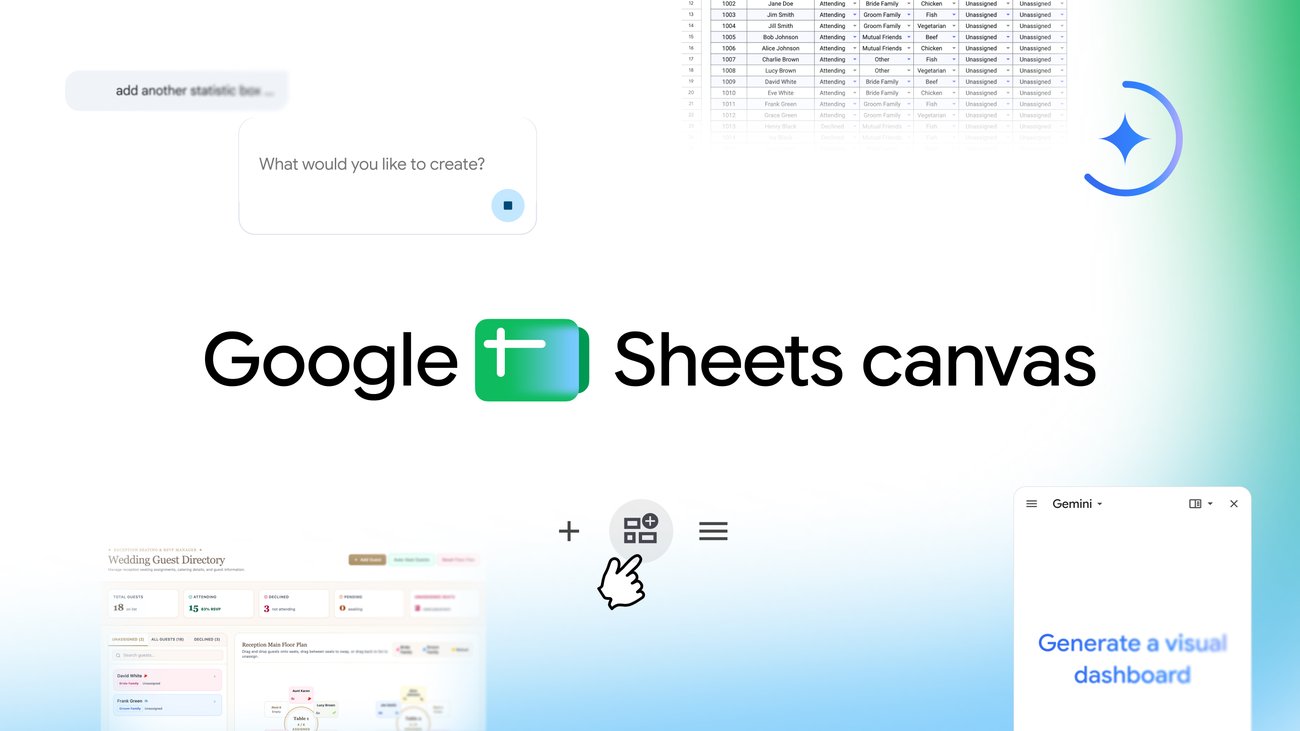
Source: The Official Google Blog
How the Technology Actually Works
Google's announcement documents four defining properties, and each one answers a practical objection:
- No coding required. No formulas, no scripting. The natural-language description is enough; Gemini generates the layout and the logic.
- Always in sync. Canvas and sheet are linked in real time. There is no export step, no version drift, and no "refresh" button to forget.
- Easy to adjust. Not happy with the layout? Prompt Gemini to change the design, colors, or functionality. You refine iteratively instead of rebuilding.
- Fully collaborative. Because a canvas lives as a tab inside the Sheets file, you share it exactly like any other sheet — a genuine advantage over single-player app builders.
The engine underneath is Gemini, the same model family that now powers Google's entire productivity stack, from the flagship models we covered in our Gemini 3.7 Flash report to everyday Workspace features like this one.
Building Your First Canvas: A Practical Walkthrough
Access requires an eligible subscription (details in the next section), but the workflow itself is short:
- Open a spreadsheet in Google Sheets — ideally one with real data: an assignments list, a budget, a client pipeline.
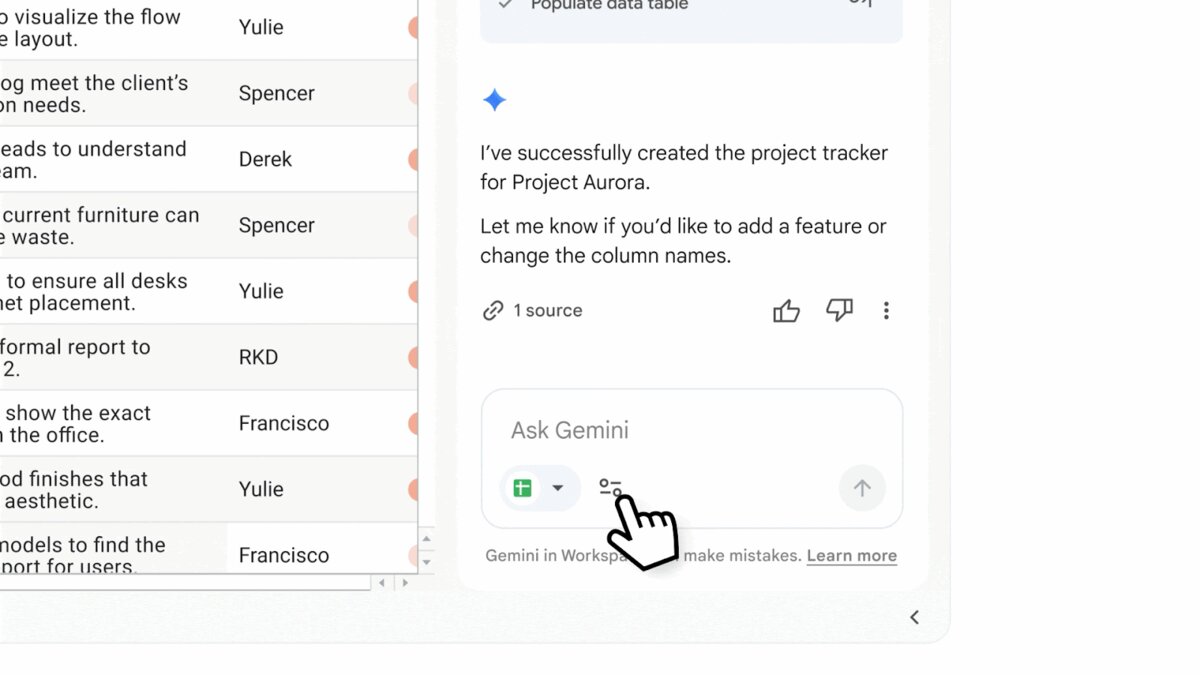
- Open the Ask Gemini side panel inside Sheets.
- Type "Create canvas" or state your goal directly, such as "build an interactive study tracker from this data."
- Watch Gemini construct the interface over your data, then test it: edit a cell from the canvas and confirm the sheet updates instantly.
- Keep refining with follow-up prompts: "make the progress card larger," "add a section for overdue tasks," "switch the palette to blue."
The single biggest quality lever is the state of your source data. A canvas does not invent data; it visualizes what you already have. Clean columns with clear headers produce a dramatically better canvas than a messy sheet.
Real Use Cases That Fit Real Lives
Google shipped three official examples; we add practical extensions drawn from how people actually use spreadsheets.
1. Staying on top of the school year
The flagship student scenario: a long assignments list becomes an interactive study aid with per-subject progress, weekly views, and deadline visibility — all computed from the columns you already keep (course, task, date, status). For students juggling five courses, this converts a guilt-inducing list into a calm dashboard. It also stacks naturally with the study toolset we catalogued in our coverage of Google's back-to-school Search features.
2. Running a small business from a sheet
A small e-commerce or handmade-goods operation tracking orders in a spreadsheet can turn it into a live order board: new orders, preparing, shipped, with totals that update as the sheet changes. It is a serious productivity jump for solo founders who are not ready to adopt — or pay for — a full operations platform.
3. Planning a wedding (or any large family event)
The now-famous official example: guest RSVP data becomes an interactive seating chart where you drag guests between tables, while the central sheet stays current. For anyone coordinating a large event with opinionated relatives, this alone saves hours of manual re-arranging.
4. A mission-control board for student and volunteer teams
A team organizing a campus event or community initiative keeps tasks, owners, and dates in a shared sheet; canvas turns it into a command board every member sees the moment they open the file — no project-management subscription required.
Source: Google Workspace Updates blog
What This Means for You: Availability, Pricing, and Language
The honest details, straight from the official announcement:
- Availability. Sheets canvas is "now available globally in English" to Google AI Pro and Ultra subscribers, and it began rolling out the same day to Google Workspace customers on Business or Enterprise Standard and Plus plans, plus subscribers of the Google AI Pro for Education add-on.
- Pricing. The practical entry point is Google AI Pro at $19.99/month (official US pricing), the same plan that bundles advanced Gemini across Google's apps plus expanded storage. The higher Ultra tier targets heavy professional use. University students may have a cheaper path entirely: the one-year free Google AI student offer we documented separately.
- Language. The launch is English-language. That refers to the feature's interface and prompt experience; nothing official has been announced about additional languages yet, so non-English users should expect an English-first workflow for now.
- Regional access. "Globally" means the feature is not region-blocked for subscribers outside the US. An AI Pro subscriber in Riyadh, Dubai, Doha, Lagos, or Jakarta with an international payment method can use it today; the practical constraints are subscription status and language, not geography.
Our practical advice: if your spreadsheet use is mainly academic and you want Gemini's broader study value anyway, first weigh whether AI Pro earns its monthly fee against the free alternatives we track continuously. Subscribe because your actual usage justifies it, not because a launch-day demo looked exciting.
Quick Comparison: Canvas vs the Alternatives
| Criterion | Sheets canvas | Excel + Copilot | Airtable | NotebookLM |
|---|---|---|---|---|
| Interactive UI from a text prompt | Yes, inside the sheet | Partial — analysis more than interfaces | Manual interface building | No — summarization, not dashboards |
| Live two-way sync with source sheet | Yes | Within the Excel file | Native to its own base | Not applicable |
| Coding required | None | None for basics | None, but concepts to learn | None |
| Multi-user collaboration | Like any Google Sheet | Via SharePoint/365 | Strong | Limited to sources |
| Cost | Included with AI Pro from $19.99/mo | Within Microsoft 365 | Free tier, then paid | Free tier + within Pro |
| Best for | Quick interactive layer over an existing sheet | Organizations already living in Excel | Real operational databases | Studying from long reference material |
The practical takeaway: canvas does not replace Airtable for teams building full operational systems, and it does not replace NotebookLM for studying long sources — it is the fastest route from a sheet you already have to a usable visual experience without leaving Google's ecosystem.
Honest Limitations Before You Subscribe
Full transparency with readers is our policy, so here is the fine print:
- English-first launch. The feature currently works in English; no timeline has been announced for other languages.
- Behind a paywall. There is no canvas on a free personal account; the floor is an AI Pro subscription.
- A "mini-app," not a full app. Canvas is excellent for viewing and quick interaction, but it is not a substitute for a real web application with user permissions and complex business logic — which is why tools like Airtable and Glide still exist.
- Prompt quality shapes output. A vague prompt yields a thin canvas; specific descriptions of what you want to see produce visibly better results.
- Days-old software. The feature launched shortly before this guide was written. Expect rapid iteration — improvements and rough edges alike.
Ready-to-Use Prompts to Try on Day One
The fastest way to understand what canvas can do is to run well-formed prompts against real data. Here are four carefully constructed prompts, exactly as you would type them into the Ask Gemini panel, with a note on why each works:
- "Build a study tracker with a progress card per subject, weekly view, and overdue tasks highlighted in red" — it succeeds because it names three concrete elements (card per subject, weekly view, red highlighting) instead of "make my sheet nicer."
- "Create a simple CRM board: new leads, contacted, won, lost — with a total pipeline value card" — ideal for a basic client list; it requests a status-driven layout plus one numeric summary card.
- "Turn this budget sheet into a monthly dashboard: spending by category with the biggest three highlighted" — works well because it ties the visualization to the real job: knowing where the money goes.
- "Make a wedding seating chart where I can drag guests between tables" — the official example in practical wording; try it on a real guest list to feel drag-and-drop with live sync.
Notice the common denominator: every prompt names the data that exists (subjects, clients, budget, guests) and the shape you want (cards, board, chart). That double specification is what separates a dazzling canvas from a dull one.
Canvas Within a Bigger Wave: From Spreadsheets to Instant Apps
It helps to place the feature in its industry context. Sheets canvas is not an isolated event but a link in a chain we have been tracking since 2025: tools that let non-programmers build fully interactive products from plain-language prompts — from the free Grok Build we covered previously to Replit's new free mode. The difference is that Google chose the more cautious, more pragmatic route: it does not build apps from scratch; it adds an interactive layer on top of data that already exists for hundreds of millions of users.
That distinction is the key to understanding where this wave succeeds. The office worker or student who has kept spreadsheets for years does not want to learn a new "app-building platform"; they want their existing sheets to behave like apps. The proof of success here will be quiet, massive adoption if Google keeps the experience friction-free — something usage data will reveal over the coming months.
When Canvas Is Genuinely the Wrong Choice
The limitations listed earlier are different from cases of fundamental mismatch. Here are four situations where we advise against building your workflow on canvas today:
- When you need per-user permissions. A canvas inherits the sharing model of its sheet; if you need "the manager sees everything, the team sees their slice," you have a real application requirement, not a dashboard requirement.
- When your data runs into the tens of thousands of rows. Sheets slow down at scale and canvas inherits those ceilings — operational databases remain the correct answer.
- When you need scheduled automation that runs while the file is closed. Canvas is a viewing and interaction surface, not a replacement for Apps Script or dedicated automation tooling.
- When your audience lives outside Google's ecosystem. Sharing a canvas requires a Google account and file access; to hand an "app" to external customers, you still need a purpose-built app builder.
Frequently Asked Questions About Google Sheets Canvas
Is Google Sheets canvas free?
No. It is available to Google AI Pro and Ultra subscribers, Google Workspace Business and Enterprise Standard and Plus customers, and Google AI Pro for Education add-on subscribers.
How do I create a canvas in Google Sheets?
Open your spreadsheet, open the Ask Gemini side panel inside Sheets, type "Create canvas" or describe what you want in natural language, and Gemini builds the interface over your data.
Does Sheets canvas work with non-English data?
The launch is English-language for the feature and its prompt experience. Google has announced no date for additional languages. You can experiment with English prompts over non-English data, but the polished experience is English-first for now.
Does canvas modify my original data?
Yes — deliberately. Canvas is a read-write layer: any change you make in the interactive view syncs instantly to the underlying spreadsheet, and vice versa. That two-way sync is its core strength.
How is canvas different from NotebookLM for studying?
Canvas turns structured data (rows and columns) into interactive tracking dashboards, while NotebookLM analyzes long reference sources like lecture notes and readings. We published a full NotebookLM student guide if you want the practical comparison.
Do I need to know how to code to use canvas?
Not at all. No formulas and no scripts — you describe the outcome and Gemini handles construction and edits.
Conclusion: Your Next Step
Sheets canvas is another concrete step in a clear direction: everyday productivity tools are shifting from "programs we learn" to "assistants we brief." If you already pay for AI Pro, try it today on a spreadsheet you genuinely maintain — the five-minute first build is the best evaluation. If you are weighing a new subscription, audit how much of Gemini you actually use before committing to the monthly fee.
And if you are a student, remember the priority order: opportunities first, productivity stack second. Browse the regularly updated scholarships and programs on Truescho — then let a canvas, or any other tool, organize the application journey itself.