
Gemini App for Windows: How to Download It and Everything It Can Do
Last updated: September 2026
You are halfway through a report in Word and need one number verified, three headline ideas drafted, and a summary of this week's team thread — and until now, every one of those detours meant a browser tab and a search for gemini.google. That loop ended on September 10, 2026, when Google launched the official Gemini app for Windows, available globally on Windows 10 and 11 with a single shortcut — Alt + Space — that opens the assistant on top of whatever you are working in. The download is free and comes directly from Google. Here is the complete guide.
Source: Official download page — gemini.google/desktop
What is the Gemini app for Windows?
It is Google's native desktop client for its AI assistant — not a browser shortcut. Erin Pettigrew, Director of Product Management for the Gemini app, said the app "gives you instant assistance without breaking your flow," and described it as "lightweight and quiet," one that "runs without slowing down your PC."
The core idea is that the assistant becomes a fast layer over your entire system: summon it while working in any application, ask, and return to your task without switching windows. Google also stressed that "this is just the beginning for the Gemini app on Windows, with more native desktop capabilities rolling out over time."
How to download and install it
The app is not distributed through the Microsoft Store — it comes straight from Google. The steps:
- Open the official link in any browser: gemini.google/desktop
- Click the download button on the page to get the Windows installer.
- Run the downloaded file and follow the standard installer steps (compatibility: Windows 10 and Windows 11).
- Sign in with the same Google account you already use for Gemini.
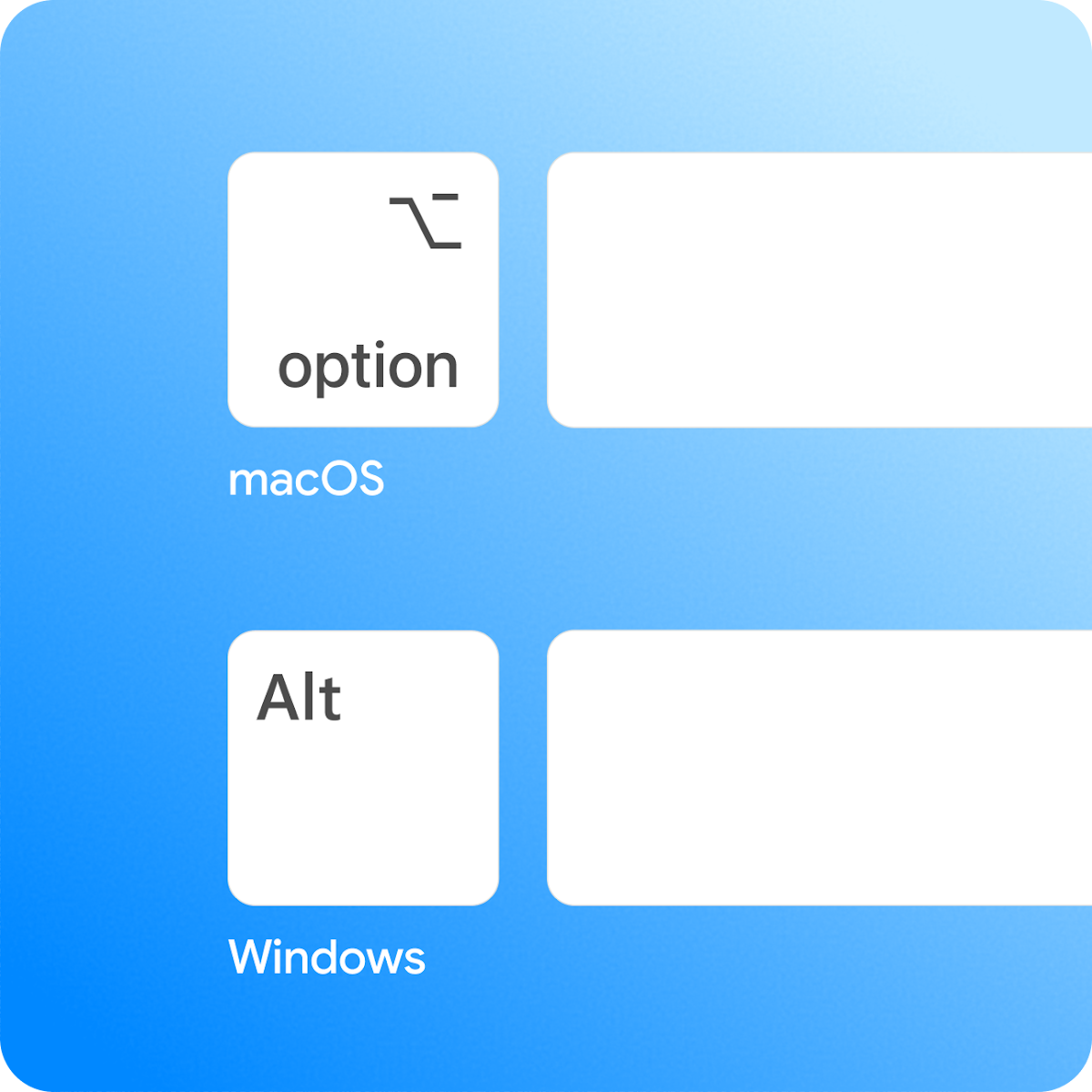
- Test it immediately: press Alt + Space at any moment — Gemini opens over your active program.
Precise hardware requirements such as RAM were not listed in the official announcement; being "lightweight" by Google's own description, any machine comfortably running Windows 10 or 11 should handle it comfortably.
Feature table: what can it actually do?
| Feature | What it does | Google AI subscription needed? |
|---|---|---|
| Alt + Space shortcut | Opens Gemini over any active app, no window switching | No |
| Full workspace | The complete Gemini feature set in a dedicated window | No |
| Gemini Spark | Hands off multi-step tasks to your 24/7 personal AI agent | Yes |
| Gmail & Drive integration | Drafts a project summary by pulling information from your mail and files | No |
| Nano Banana images | Generates custom images from a text description inside the app | No |
| Gemini Omni video | Directs high-quality video from text | Yes |
One important note on the third column: the paid Google AI subscription applies only to advanced agentic features like Spark and video generation, with an 18+ age restriction and regional availability differences. Core conversation, the shortcut, and the service integrations run on a standard account.
Source: Official download page — gemini.google/desktop
Who is this app really for?
University students are the biggest winners. Summarize a recorded lecture, generate review questions, rephrase a research paragraph, then return to your project document — all without leaving your screen. Students who combine it with structured study tools get compounding returns, and if Gemini is new to you altogether, our beginner walkthrough is here: How to Use Gemini for Studying.
Office workers will recognize Google's announcement example as an ordinary workday: fact-check a detail in a document, brainstorm presentation titles, and go back to what you were doing. The conversation happens in whatever language you already use with Gemini — for much of the world's English-as-second-language workforce, that plain-language flexibility is the point.
Heavy image and video users get Nano Banana image generation inside the app, while video output through Gemini Omni requires the paid subscription — the plan differences are mapped out in: The Complete Gemini Advanced Guide.
A full study day with the app: a practical scenario
To make the value of one shortcut concrete, picture a typical day for a first-year student. In the morning lecture, she opens the window over her notes file and asks for a two-sentence explanation of an unfamiliar term. Between classes, she turns two pages of a textbook into a set of review questions. In the evening, working on her research assignment, she asks for five title suggestions, picks one, and has the introduction rephrased in academic register.
Every one of those steps used to cost minutes in multiple tabs with repeated loss of focus; now they happen inside one flow. Nano Banana image generation serves presentations directly — an illustrative visual for a project pitch or a cover image for a slide deck without hunting through stock libraries.
The ecosystem picture completes the story: Google already offers desktop Gemini on macOS, and the Windows release closes the gap for the world's largest installed base of university and office machines. The competitive edge here is not a smarter model — it is proximity: whichever assistant is easiest to summon at the moment of need wins the actual usage hours.
Tips for smart use from day one
- Drill the shortcut into muscle memory. Press Alt + Space ten separate times on your first day until it becomes automatic; the app's entire value lives in summon speed.
- Separate quick tasks from deep ones. Two-second questions belong to the overlay; long projects and large files belong in the full workspace window.
- Exploit the service integration. Ask for a summary that pulls threads from Gmail and Drive instead of pasting them manually — the fastest way to feel the difference from the browser.
- Specify format, length, and audience in every prompt. "Explain to a first-year student in 100 words" consistently outperforms open-ended requests.
- Review before you rely. As with any generative tool, verify numbers and references before they enter an assignment or a work report.
Windows app vs mobile app vs browser
| Criterion | Browser site | Mobile app | Windows app |
|---|---|---|---|
| Access speed | Tab + typing | Icon + unlock | Alt + Space instantly |
| Works over another app | Impractical | No | Yes — the core design |
| Long agent tasks | Limited | Yes | Yes, via Spark |
| Image & video creation | Yes | Yes | Yes, in-app |
For the mobile experience, see our earlier coverage: Gemini on Android and iPhone.
Frequently asked questions
How do I download the Gemini app for Windows?
From the official link, gemini.google/desktop — click the download button, run the installer, and sign in with your Google account. The app is not published through the Microsoft Store, and any third-party site claiming to distribute it should be ignored for security reasons.
Is the Gemini Windows app free?
Downloading and the core experience — conversation, the shortcut, Gmail and Drive integration, and image generation — work on a standard Google account. The paid Google AI subscription applies only to advanced features such as the Gemini Spark agent and video generation with Gemini Omni.
What does Alt+Space do in the Gemini app?
It opens a Gemini window over your active application at any moment — while writing in Word, browsing, or working in any program — and you close it and return to your task directly, with no window switching.
Does the Gemini app work on Windows 10?
Yes. The official announcement states the app is "available today globally for Windows 10 and 11," so there is no need to upgrade your operating system if the tenth version runs smoothly on your machine.
Is the Gemini desktop app available worldwide?
Yes — the launch announcement describes global availability for Windows 10 and 11. What varies by region is the availability of subscription-gated features like Spark and Gemini Omni, not the app itself.
Do I need a Google AI subscription for the Windows app?
Not for the fundamentals, as the feature table shows. The subscription covers agentic and video features only, is restricted to users 18 and older, and its availability differs by country.
Sources
- Google's official blog — The Gemini app is now available for Windows — primary announcement
- Official app download page — the direct installation link
- Official Gemini Spark page — details on the personal agent
Before you close this tab, apply the one-day test: install the app and use it through a full study or work day. If you catch yourself summoning it more than five times through Alt + Space, it has earned a permanent spot in your setup; if you forget it exists, the browser still covers you. And if you are assembling your complete student toolkit — scholarships, rankings, an AI study assistant, a GPA calculator — Truescho puts them all in one free platform.