
ChatGPT's Computer History: How OpenAI's Opt-In Activity Timeline Works, and How It Differs From Windows Recall
Last verified: August 20, 2026 — facts from Ari Weinstein's official announcement post (OpenAI, August 13, 2026) and The Verge's coverage published August 16, 2026.
It's 9:40 in the morning. You're a consultant in Lagos, a developer in Bangalore, or an analyst in São Paulo, and you've already touched fourteen applications: a spreadsheet you revised, a Slack thread about a client, a browser full of research, a PDF contract. Somewhere around noon, you'll ask ChatGPT for help consolidating the morning — and until recently, the assistant would have had no idea what your morning looked like. On August 13, 2026, OpenAI changed that. A feature called Computer History, launched in the ChatGPT desktop app for macOS, builds a timeline of your computer activity that ChatGPT (and Codex) can draw on when you ask — letting it understand how you work, finish tasks you're in the middle of, and suggest skills and automations based on your actual usage. We're explaining it on August 20, one week after launch, because a feature like this deserves a careful look rather than a day-one reaction.
Source: OpenAI official video
What OpenAI Announced on August 13
The announcement came from Ari Weinstein, product and engineering manager at OpenAI, in a post on X. The full text is worth reading verbatim, because every word of it carries design weight:
"Today we're releasing Computer History in ChatGPT. It lets ChatGPT learn from everything you do on your computer, so it can better understand how you work, finish tasks that you're in the middle of, and suggest skills and automations based on how you use your computer."
Source: Ari Weinstein on X
Two phrases deserve attention. "Learn from everything you do on your computer" tells you the scope is total — not a hand-picked list of integrations. "Finish tasks that you're in the middle of" tells you the purpose is continuity: the assistant is meant to know where you left off, so you stop re-explaining context. Three days later, The Verge's Terrence O'Brien covered the feature with a memorably balanced framing: "It's like Windows Recall, but without all the creepy screenshots. (But it's still kind of creepy.)" That sentence is probably the fairest one-line summary you'll find — it acknowledges both the genuine engineering difference from Microsoft's approach and the discomfort that remains.
How the Mechanism Actually Works
The single most important technical fact — the one that separates Computer History from Windows Recall — is this: it does not capture images, videos, or audio. The Verge states it directly: "OpenAI says Computer History doesn't capture images, videos, or audio, instead relying on 'events.'" Where Recall's approach depended on periodic screenshots of your screen, Computer History builds a structured record of events: which application, what action, roughly when. Think of it less like a screen recording and more like a detailed activity log written in the language of what happened, not what the screen looked like.
Here's the step-by-step picture of how it functions:
- You opt in. The feature is not enabled by default. Nothing is recorded until you explicitly turn it on.
- Your activity becomes events. As you work — editing documents, browsing, messaging — the desktop app logs structured events rather than pixels or waveforms.
- A timeline forms. These events accumulate into a chronological record of your computer use.
- ChatGPT and Codex consult it on request. When you ask the assistant something that depends on context — "what was that document I edited last?" — it reads from the timeline.
- Exclusions apply. You can exclude specific apps and websites. Sensitive categories — your banking portal, your company's HR system — can be walled off entirely.
- Private browsing is respected. Per Weinstein's statements on X, the feature automatically ignores incognito/private browsing windows. What you do in private mode doesn't enter the timeline.
- Individual entries can be deleted. This isn't an all-or-nothing record; you can remove specific entries.
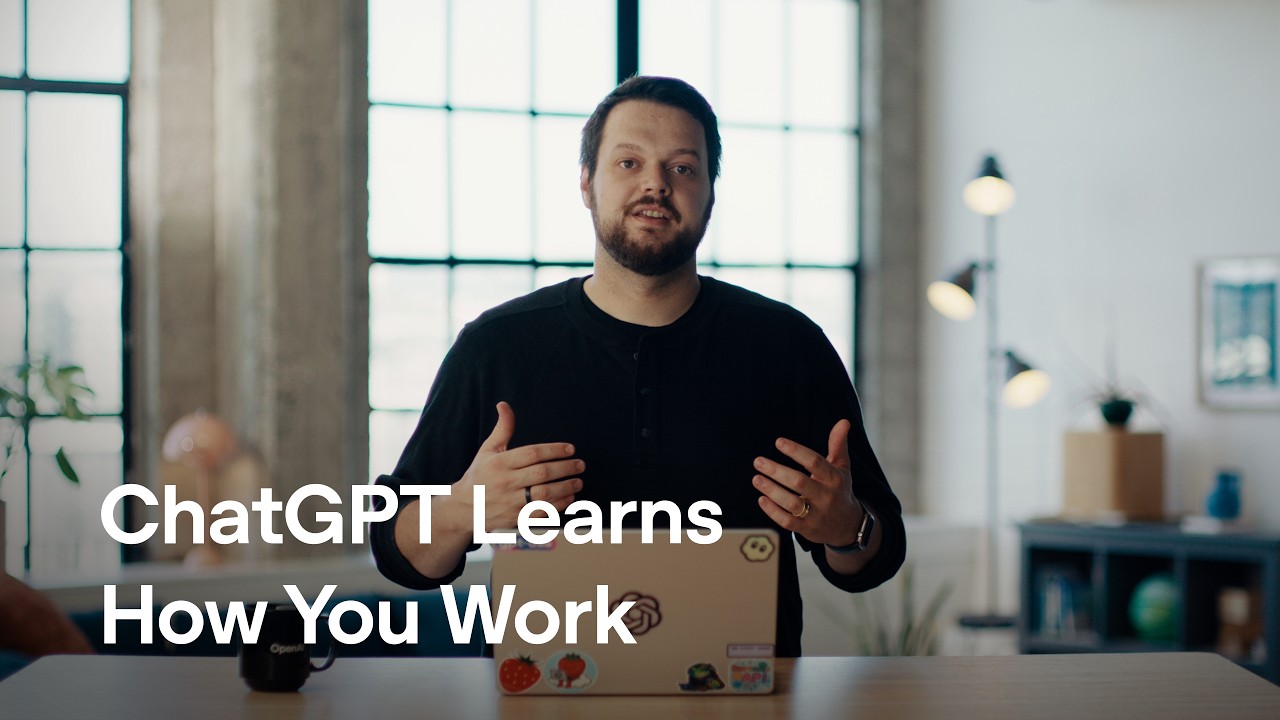
The official demonstration, given by Dominik Kundel of OpenAI's developer experience team, showed the feature in practice: he asked about the last document he had edited, had ChatGPT check whether it had been shared via Slack, and asked for a summary of his morning. That sequence — retrieve, verify, summarize — is the intended daily rhythm: the timeline turns "summarize what I did" from a chore into a query.
Source: OpenAI official YouTube channel
Computer History vs. Windows Recall vs. Your Chat History
| Aspect | Computer History (ChatGPT) | Windows Recall | Regular ChatGPT history |
|---|---|---|---|
| What's captured | Structured "events," no images/video/audio | Screen snapshots | Only your conversations |
| Default state | Opt-in — off until you enable it | Microsoft has iterated on defaults after backlash | On by default for chats |
| Exclusions | Per-app and per-site exclusions, private-browsing windows ignored automatically | Exclusion options, refined after criticism | Not applicable |
| Deletion | Delete individual entries | Delete snapshots | Delete conversations |
| Used by | ChatGPT and Codex, on request | Windows system features | ChatGPT only |
| Platform | macOS desktop app (per current coverage) | Windows | All platforms |
The comparison matters because Recall burned a lot of trust before shipping, and that history shapes how every similar feature is now judged. OpenAI's design choices — opt-in, events not screenshots, automatic private-browsing exclusion, granular deletion — read like a checklist written in response to that episode. The Verge's "still kind of creepy" verdict is the honest counterweight: good defaults don't eliminate the unease of an AI logging your workday; they just reduce the blast radius if something goes wrong.
What the Timeline Is Actually Good For
Beyond the demo's tidy morning-summary scenario, the practical use cases cluster into a few recognizable patterns. The first is context recovery: the "what was that file I was editing?" question that normally costs five minutes of hunting through recent-document lists and browser history. When the answer is one query away, the friction of switching between projects drops noticeably.
The second is task continuation. Weinstein's announcement specifically highlights finishing "tasks that you're in the middle of" — the half-written email, the analysis you abandoned when a meeting intervened, the setup steps you completed three-quarters of the way. An assistant that can see where you stopped can propose the next step instead of asking you to restate where you were.
The third is automation discovery. The announcement promises the feature will "suggest skills and automations based on how you use your computer." Read that carefully: the timeline is not only a memory aid but a diagnostic tool. If your events show you repeatedly performing the same sequence — export from one app, rename, upload to another — that repetition is exactly the signal an assistant needs to suggest automating it. For students juggling research workflows, and for professionals in fast-moving environments from Lagos to Jakarta, this is arguably the most valuable of the three: it converts invisible habits into visible improvement opportunities.
A fourth pattern deserves mention because it's the quiet one: team handoffs. The demo's Slack check — "was this document shared?" — points at how a timeline can answer questions about the state of your work, not just its content. When your status report can be assembled from what you actually did rather than what you remember doing, both accuracy and honesty improve.
None of this is automatic. Every one of these benefits assumes you opted in, you granted the necessary permissions, and you actively ask the assistant to use the timeline. The feature is a reference library, not an interventionist assistant; it speaks when spoken to.
What Leaves Your Machine — and What Doesn't
Drawing the boundaries precisely matters here, so let's be exact about what the verified sources establish. What is captured: events — structured records of activity in applications, defined as clicks and keystrokes in The Verge's characterization. What is never captured, per OpenAI: images, videos, or audio. What is never captured by design: anything in incognito or private browsing windows, which are ignored automatically.
What remains genuinely unclear from the announcement and coverage — and honesty requires saying so — is the full retention and processing detail: exactly how long entries persist, precisely which events are recorded at the operating-system level versus the application level, and how the data feeds into any model improvement pipelines. OpenAI's broader data handling practices are covered in our separate reporting on OpenAI's zero data retention changes, but for Computer History specifically, the launch materials do not answer every question a privacy-conscious professional would ask. Anyone handling regulated data — client records, patient information, financial documents — should treat that uncertainty as a reason to configure exclusions aggressively or to wait for more documentation before opting in.
Why This Matters for Professionals and Students
For people whose work spans many tools — which is most knowledge workers and increasingly most students — the context problem is the biggest tax on AI assistance. Every conversation starts from zero unless you manually paste in background. A timeline changes the economics: the assistant that knows your morning can do triage, drafting, and follow-through without a briefing.
The student angle is concrete. Imagine preparing a research paper: sources in the browser, notes in one app, draft in another, citations in a third. With Computer History, "help me finish what I was working on" becomes answerable — the assistant can see the trail of what you touched. For a deeper dive into OpenAI's broader privacy posture, see our coverage of OpenAI's zero data retention changes; for how this fits the company's strategy at a time of training slowdowns, read our article on OpenAI slowing frontier AI training. You can also explore how assistants compare in practice via Truescho's AI tools.
How to Configure It Sensibly
If you enable it — and "if" is the operative word — a disciplined setup looks like this:
- Decide whether you need it at all. If your work is confined to one or two apps, the benefit may not justify the exposure.
- Turn it on deliberately, knowing it's off until you flip it.
- Exclude the sensitive layer first: banking, corporate systems containing others' personal data, any client-identifying tools. Configure exclusions before a full day of activity is logged.
- Verify private browsing behavior matches your expectation — Weinstein has stated incognito/private windows are ignored automatically, but confirming on your own machine costs nothing.
- Review and prune entries. Individual deletion exists precisely so the timeline reflects what you're comfortable sharing.
- Revisit permissions periodically. A log that was reasonable in August may not be reasonable after your projects change in November.
Honest Limitations and Open Questions
Several things Computer History is not. It is not cross-platform yet: per current coverage, it lives in the macOS desktop app, and no Windows timeline has been announced — anyone promising a Windows date is inventing it. It is not silent: opt-in means nothing happens without your choice. And it is not risk-free. A rich activity timeline is valuable precisely because it is comprehensive, and comprehensiveness is a liability if the data is ever mishandled, subpoenaed, or breached. The Verge's headline frames the feature as tracking "your clicks and keystrokes" — a reminder that even event-based logging is, functionally, a record of your working life. Whether that trade is worth it depends on what you do, what your employer or institution requires, and how much you trust the pipeline between your desk and the model. OpenAI's design choices lower the risk; they don't erase it. Readers who weigh features like this carefully may find Truescho's AI tools useful for comparing assistants before committing to any one ecosystem.
FAQ
What is the Computer History feature in ChatGPT?
Announced August 13, 2026, it's an opt-in feature of the ChatGPT macOS desktop app that builds a timeline of activity on your computer. ChatGPT and Codex consult it on request — to understand your work, finish in-progress tasks, and suggest skills and automations based on your usage.
Does it take screenshots of my screen?
No. OpenAI says it doesn't capture images, videos, or audio — it relies on "events," structured records of activity. This is the main technical difference from Microsoft's Windows Recall, which depended on screenshots. The Verge still called it "kind of creepy," fairly.
How do I turn it off or exclude an app?
It's opt-in and off by default, so simply don't enable it. If enabled, you can exclude specific apps and websites, delete individual timeline entries, and private/incognito browsing windows are ignored automatically, per Weinstein's statements on X.
Does it work on Windows or only Mac?
Per current coverage, it's in the ChatGPT desktop app for macOS. No Windows availability or timeline has been announced. Don't rely on rumors about a Windows release date — nothing official exists as of August 20, 2026.
What does Codex have to do with it?
Codex, OpenAI's coding agent, can also consult the timeline when you request it. In the official demo, the workflow combined timeline context with assistant tasks — retrieving recent documents, checking whether they were shared via Slack, and summarizing the morning's work.