
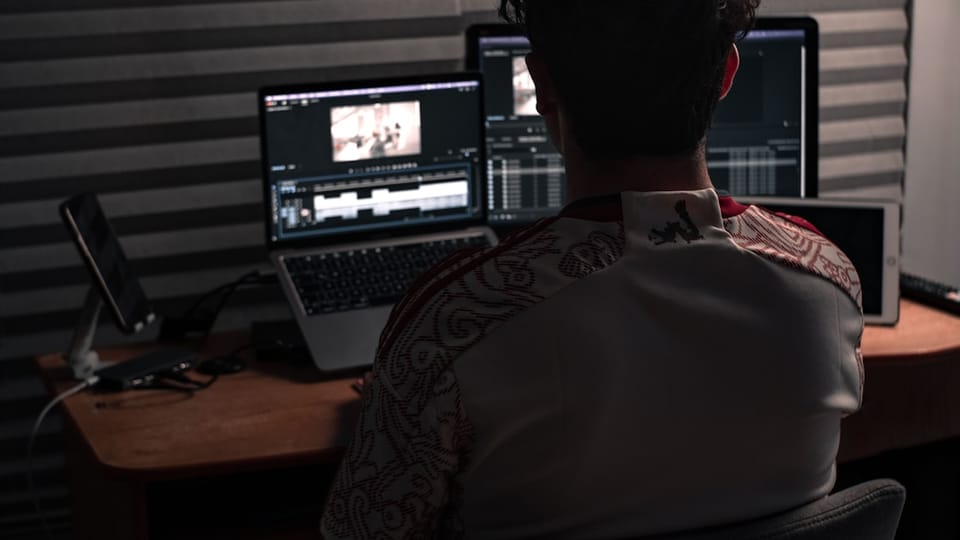
Best AI Tool for YouTube Videos in 2026
Last updated: May 2026
The best AI tool for YouTube videos in 2026 is not one single app for every channel. If you want to turn a prompt or script into a publishable draft quickly, InVideo is the most practical starting point for many creators. If you already have footage and need to edit Shorts, captions, hooks, intros, and visual polish, CapCut is the better editing companion. If you need avatar-based corporate training, Synthesia may be stronger. If you need cinematic AI B-roll, tools such as Veo, Sora, Runway, Kling, or Luma may be useful as generation layers rather than complete YouTube systems.
💬 Disclosure: Some links in this article are affiliate links. We may earn a small commission when you complete a purchase at no extra cost to you. This helps us keep our content free, and it does not affect the integrity of our recommendations.
Direct answer: what is the best AI tool for YouTube videos?
For most creators, the best AI tool for YouTube videos is InVideo if your workflow starts with a topic, prompt, outline, or script. It can help generate a video draft using stock media, AI voiceover, captions, and editing instructions. InVideo’s official pricing information says paid plans include access to many image, video, audio, and music models, and its v4 agent can create videos up to 30 minutes from one prompt. Credits, model costs, and plan rules change, so verify current limits before subscribing.
For editing, polishing, and social repurposing, CapCut is the best companion. CapCut’s official desktop page highlights tools such as AI YouTube video maker, YouTube intro maker, long video to shorts, auto captions, AI dubbing, keyframes, and direct sharing features. It is not the same as a full script-to-video generator, but it is excellent at turning raw or AI-generated material into platform-ready content.
The best AI YouTube stack in 2026
Instead of looking for a magic app, build a stack around the real jobs inside a YouTube workflow:
| Job | Recommended tool type | Practical pick |
|---|---|---|
| Ideation and outline | AI writing assistant plus human research | Any reliable writing model with source checking |
| Script-to-video draft | AI video creation suite | InVideo |
| Mobile and Shorts editing | Social video editor | CapCut |
| Cinematic AI B-roll | Generative video model | Veo, Sora, Runway, Kling, Luma |
| Avatar training videos | Avatar platform | Synthesia or HeyGen |
| Existing content to video | Repurposing tool | Pictory or similar |
| Final human review | Creator judgment | You, not the AI |
This distinction matters because YouTube success depends on retention, originality, trust, and packaging. AI can create assets quickly, but it cannot automatically make a weak idea valuable.
Why InVideo is the best starting point for many YouTube creators
InVideo is useful because it focuses on the messy middle of YouTube production: turning an idea into a video draft. Zapier’s 2026 AI video generator coverage positions InVideo AI as a strong AI video creation suite for social videos from prompts. Synthesia’s 2026 comparison also notes InVideo’s strength in one-prompt marketing videos and storytelling, while cautioning that rendering can be slow.
For YouTube creators, that means InVideo is best when you need speed more than frame-by-frame precision. It can help with faceless explainers, product summaries, list videos, educational clips, social versions of longer scripts, and simple marketing videos.
InVideo pros for YouTube
- Turns prompts and scripts into video drafts quickly.
- Useful for faceless channels, explainers, product demos, and social videos.
- Can combine stock media, voiceover, captions, and AI editing instructions.
- Paid plans may include access to many models and stock providers depending on current plan rules.
- The v4 agent can create videos up to 30 minutes from one prompt according to InVideo’s pricing information.
InVideo cons for YouTube
- Credit systems can be confusing for beginners.
- Unused credits may not roll over, according to the researched pricing notes.
- AI-generated drafts still need human fact-checking, pacing, and visual review.
- Rendering can be slower than expected for complex videos.
- It is not a precise frame-by-frame editor like a dedicated editing app.
When InVideo is not for you
InVideo is not ideal if you already shoot all your own footage and only need a mobile editor. It is also not the best fit for cinematic filmmaking, complex documentary editing, or channels where every shot requires precise creative control. If your audience expects deep expertise, original demonstrations, or technical accuracy, InVideo can help produce drafts, but it should not replace your research and judgment.
Why CapCut is the best AI editing companion for YouTube
CapCut is not just for TikTok. It is also useful for YouTube creators who need fast editing, captions, intros, short clips, and repurposing. CapCut’s official desktop page highlights long video to shorts, AI YouTube video maker, YouTube intro maker, auto captions, AI dubbing, smart search, keyframes, graphs, and color tools.
Where InVideo helps you generate a first version, CapCut helps you make it watchable. You can tighten the hook, remove slow sections, correct captions, add branded text, resize for Shorts, create a stronger intro, and improve pacing.
CapCut pros for YouTube
- Excellent for Shorts and repurposing long videos.
- Strong auto captions and social editing tools.
- Good for intros, hooks, overlays, and fast visual polish.
- Easier than professional desktop editors for beginner creators.
- Useful on mobile and desktop.
CapCut cons for YouTube
- It is not a full AI script-to-video suite in the same way as InVideo.
- Some AI and Pro features may require a paid plan.
- Long-form professional editing can feel limited compared with desktop software.
- Privacy and media-library permissions deserve attention, especially for client footage.
When CapCut is not for you
CapCut is not the best fit if you need deep color grading, advanced audio post-production, collaborative studio workflows, or complex documentary timelines. In those cases, use a professional editor and keep CapCut for Shorts or quick social versions.
Best AI tool by YouTube channel type
| Channel type | Best starting tool | Why |
|---|---|---|
| Faceless educational videos | InVideo | Script-to-video workflow with voiceover and stock media |
| Shorts channel | CapCut | Fast vertical editing, captions, templates |
| Product demos | InVideo plus CapCut | Generate structure, then polish manually |
| Corporate training | Synthesia | Avatar and presenter-style videos |
| Film or cinematic channel | Runway/Veo/Sora plus editor | Generate B-roll, then edit professionally |
| Podcast clips | CapCut or Descript-style editor | Captions, trimming, social repurposing |
| Course creator | InVideo plus human slides and CapCut | Draft lessons, improve clarity, export snippets |
A monetization-safe AI workflow for YouTube
Creators often ask whether AI-generated videos can be monetized. The safer answer is this: YouTube does not reward low-value mass-produced content just because it was made quickly. AI can be part of your workflow, but your video should add original value. That value can come from human explanation, research, commentary, demonstrations, editing, testing, interviews, examples, or original analysis.
Use this workflow:
- Choose a topic where you can add real insight.
- Research facts from credible sources before generating a script.
- Write a clear outline with a specific promise.
- Use InVideo to create a first draft if you need stock visuals and voiceover.
- Review every claim, number, product mention, and visual.
- Use CapCut to tighten pacing, captions, hook, and Shorts versions.
- Add original screenshots, demonstrations, or commentary where possible.
- Disclose AI use when platform rules or audience trust require it.
- Publish with a human-written title, thumbnail concept, and description.
This is slower than “one prompt and publish,” but it is far more durable. Channels built only on generic AI output are easy to copy and difficult to trust.
InVideo vs CapCut for YouTube
| Question | InVideo | CapCut |
|---|---|---|
| Can it create a draft from a prompt? | Yes, this is a core strength | Limited compared with InVideo |
| Is it best for editing footage? | Basic to moderate | Strong |
| Is it good for Shorts? | Good for generation | Excellent for editing and publishing |
| Is it good for long-form YouTube? | Useful for draft creation | Useful for editing, but not pro-level for complex projects |
| Does it replace human review? | No | No |
| Best role | AI video creation suite | AI-assisted editor |
If you are deciding between the two, read our full CapCut vs InVideo comparison. If you want deeper product reviews, see our InVideo AI review and CapCut Pro review.
What about Sora, Veo, Runway, Pictory, and Synthesia?
Generative video tools are powerful, but they are not all designed for the same YouTube job.
Sora
Sora is useful for story-like generative video and creative scenes. It can be impressive for visual storytelling, but availability, pricing, duration, and commercial terms may change. It is better viewed as a source of AI scenes than a full YouTube workflow.
Google Veo
Zapier’s 2026 coverage highlights Google Veo as strong for consistent results. Synthesia’s 2026 analysis also describes Veo as strong in realism and audio. For YouTubers, Veo can be useful for B-roll, concept visuals, or scenes that would be expensive to shoot. It still needs editing, context, and fact-checking.
Runway
Runway is a creative platform for generating and manipulating video. It is strong for filmmakers, designers, and visual experimentation. It may not be the fastest path for a beginner who wants a complete YouTube video from a script.
Pictory
Zapier positions Pictory as useful for turning existing content into videos. That makes it attractive for bloggers, podcasters, and course creators who already have written material. It is less ideal if you need cinematic original scenes.
Synthesia
Synthesia is excellent for avatar-style training, corporate communication, and presenter videos. It is not always the best fit for personality-driven YouTube entertainment, but it can work well for structured education.
Expertise and trust example: building a faceless education channel
Suppose you want to create a faceless channel explaining productivity tools. A weak AI workflow would be: ask an AI for a script, generate a video, upload it, and repeat. That content will probably feel generic.
A stronger workflow is different. You test the tool yourself, record screen clips, collect current pricing notes, write a script based on real use, generate supporting scenes in InVideo, edit the final version in CapCut, and include your own verdict. The audience can tell the difference. You are not using AI to fake expertise; you are using AI to package real expertise faster.
Common mistakes YouTubers make with AI tools
- Publishing AI videos without checking facts.
- Using robotic stock footage that does not match the script.
- Making every video sound like a generic listicle.
- Ignoring YouTube retention and focusing only on production speed.
- Overusing AI voiceover without emotion, pacing, or pronunciation review.
- Forgetting to correct captions, names, dates, and prices.
- Assuming AI-generated visuals are automatically safe for commercial use.
- Paying for high-tier plans before understanding credits and limits.
Practical tips for better AI YouTube videos
- Start with a narrow audience and a specific promise.
- Write a human hook before generating visuals.
- Use AI for drafts, not final judgment.
- Add original examples, tests, screenshots, or commentary.
- Keep the first 30 seconds fast and clear.
- Use CapCut to make Shorts from long videos, but rewrite the hook for each short.
- Verify current pricing on official pages before mentioning costs in a video.
- Track retention analytics and improve the next script based on viewer drop-off.
Pricing notes and what to verify
AI video pricing changes quickly. Zapier’s 2026 guide mentioned examples such as InVideo Plus at $35/month, Sora access through ChatGPT plans, and other model prices, but you should treat any published price as a snapshot. InVideo’s own pricing page explains that credits are used for generation, models, and features, not for downloading content, and that unused monthly credits may not roll over. Always verify:
- Monthly and annual plan price.
- Credit allocation and credit cost per model.
- Watermark rules.
- Maximum video length.
- Stock media rights.
- Commercial usage terms.
- Refund and cancellation rules.
How to choose your first AI YouTube tool
If you are new, do not subscribe to five tools at once. Start with one workflow:
- If you write scripts and want videos fast, test InVideo.
- If you record on your phone and need editing, test CapCut.
- If you need realistic cinematic clips, test one generative model and export into an editor.
- If you create training videos, test an avatar platform.
- If you need to learn video production fundamentals, browse Truescho courses before paying for more software.
You can also explore creator-related digital tools through the Truescho shop, but do not buy subscriptions until your workflow proves that the tool will save time or increase quality.
Related guides
For a wider market overview, read our guide to the best AI video creation tools in 2026. If your focus is mobile editing, see the best mobile video editing app guide. If you want prompt-to-video tools specifically, continue with our guide to text-to-video AI tools.
FAQ
What is the best AI tool for YouTube videos?
For most script-based creators, InVideo is the best starting point because it can turn prompts or scripts into video drafts. CapCut is the best companion for editing, Shorts, captions, and polish.
Can AI create YouTube videos?
Yes, AI can help create YouTube videos, but human review is essential. You still need original ideas, accurate information, pacing, editing, and platform-aware packaging.
What is the best AI video generator for faceless YouTube channels?
InVideo is a strong choice for faceless channels because it can combine scripts, stock media, AI voiceover, and captions. Pictory can also be useful when repurposing existing articles or long-form content.
Is InVideo good for YouTube videos?
Yes, InVideo is good for YouTube drafts, explainers, product videos, and faceless content. It is less ideal for precise professional editing, so many creators still polish in CapCut or another editor.
Is CapCut good for YouTube editing?
CapCut is excellent for Shorts, intros, captions, and fast edits. It can handle simple long-form videos, but professional editors may prefer desktop tools for complex projects.
Can YouTube monetize AI-generated videos?
Monetization depends on content quality, originality, policy compliance, and viewer value. Generic mass-produced AI videos are risky. Add human insight, research, editing, and originality.
What AI tool converts scripts to videos?
InVideo is one of the most practical script-to-video tools for creators. Pictory is useful for turning existing text content into videos, while Synthesia is strong for avatar-style presentations.
What is the best AI voiceover tool for YouTube?
The best voiceover tool depends on language, licensing, emotion, and budget. Many AI video suites include voiceover options, but you should always check pronunciation, commercial rights, and platform rules.
Sources
- InVideo AI product page: invideo.io
- InVideo pricing page: invideo.io
- CapCut official desktop video editor page: capcut.com
- Zapier best AI video generators 2026: zapier.com
- Synthesia best AI video generators 2026: synthesia.io